Manage Comm Links
Use Comm Links to select an existing asset, review connection details, create new link entries, and back up the comm-link list.
Navigation: Menu > Comm Links
Before You Start
Confirm you are editing the correct asset entry before connecting or changing its values.
Keep aircraft-side changes separate from comm-link management. This page configures how GCS-beXStream reaches the asset.
Steps
Click the asset card you want to manage so the editor panel loads its saved values.
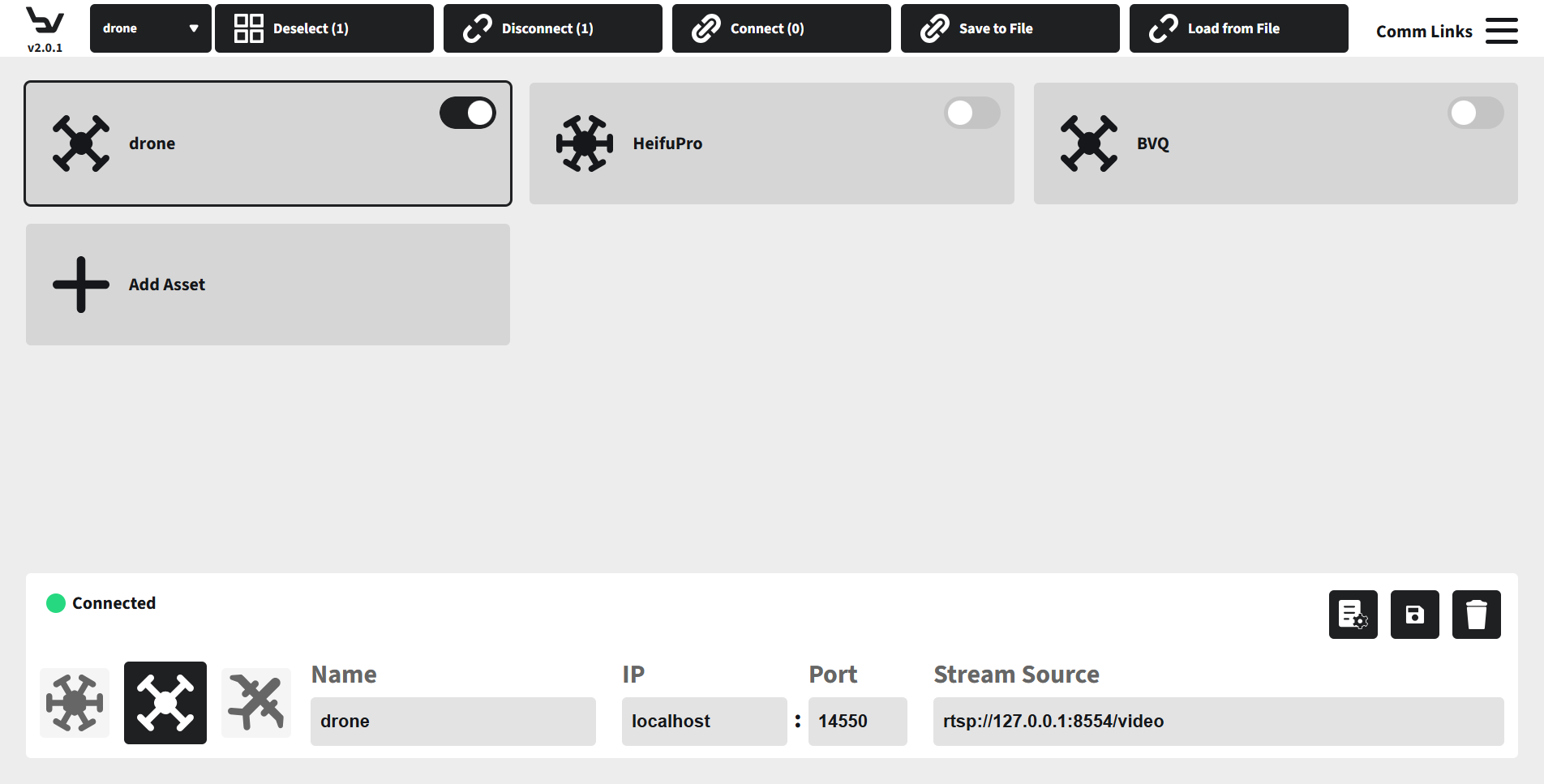
Fig. 92 Step 1: Select an existing comm-link
Review the saved Name, IP, Port, and Stream Source in the editor before making changes.

Fig. 93 Step 2: Review saved comm-link details
Use the card toggle to connect or disconnect that asset entry. The Active Asset selector updates when the connection succeeds.
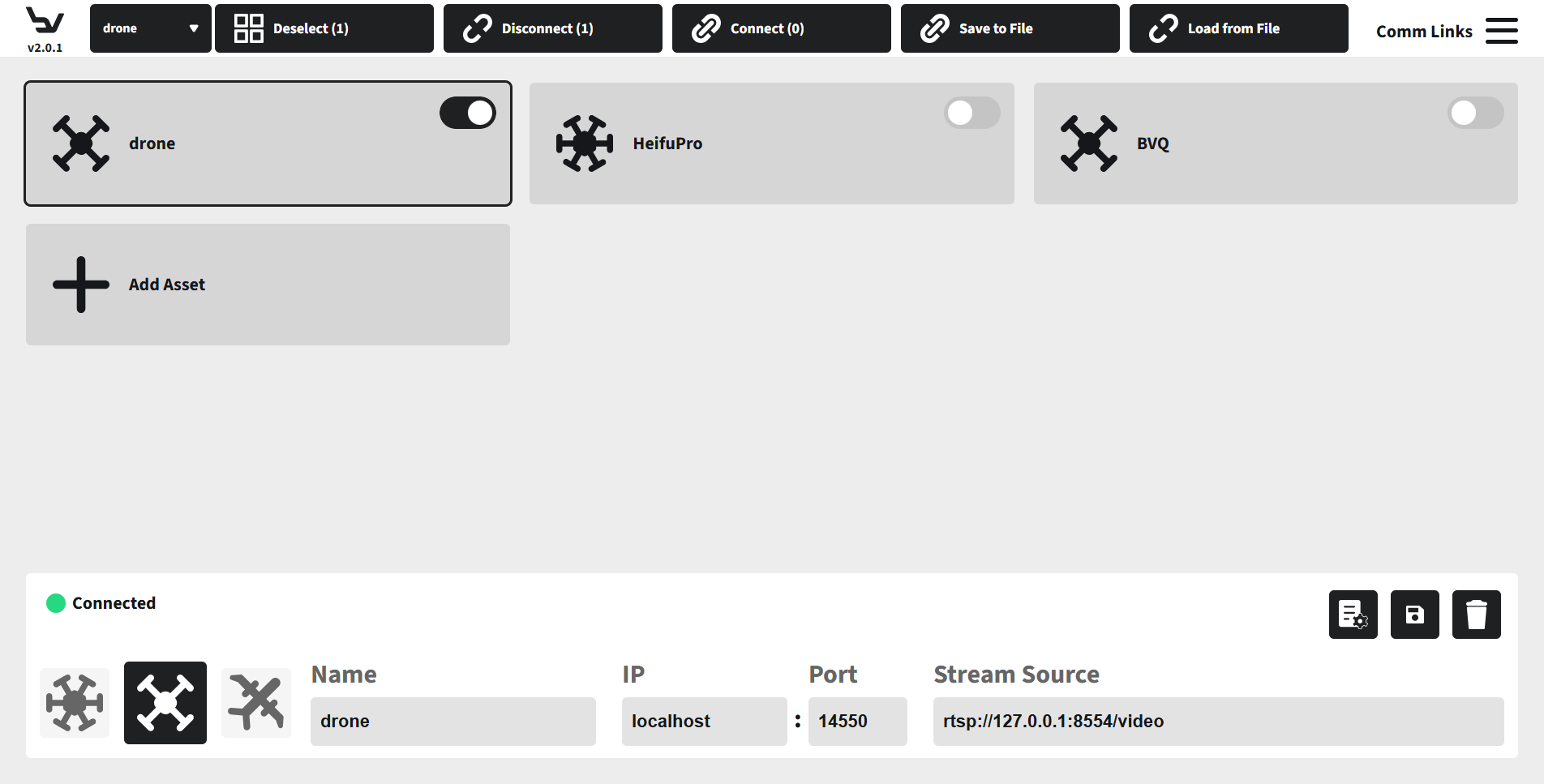
Fig. 94 Step 3: Connected comm-link state
Click Add Asset to open a blank editor when you need to register a new aircraft or simulator entry.
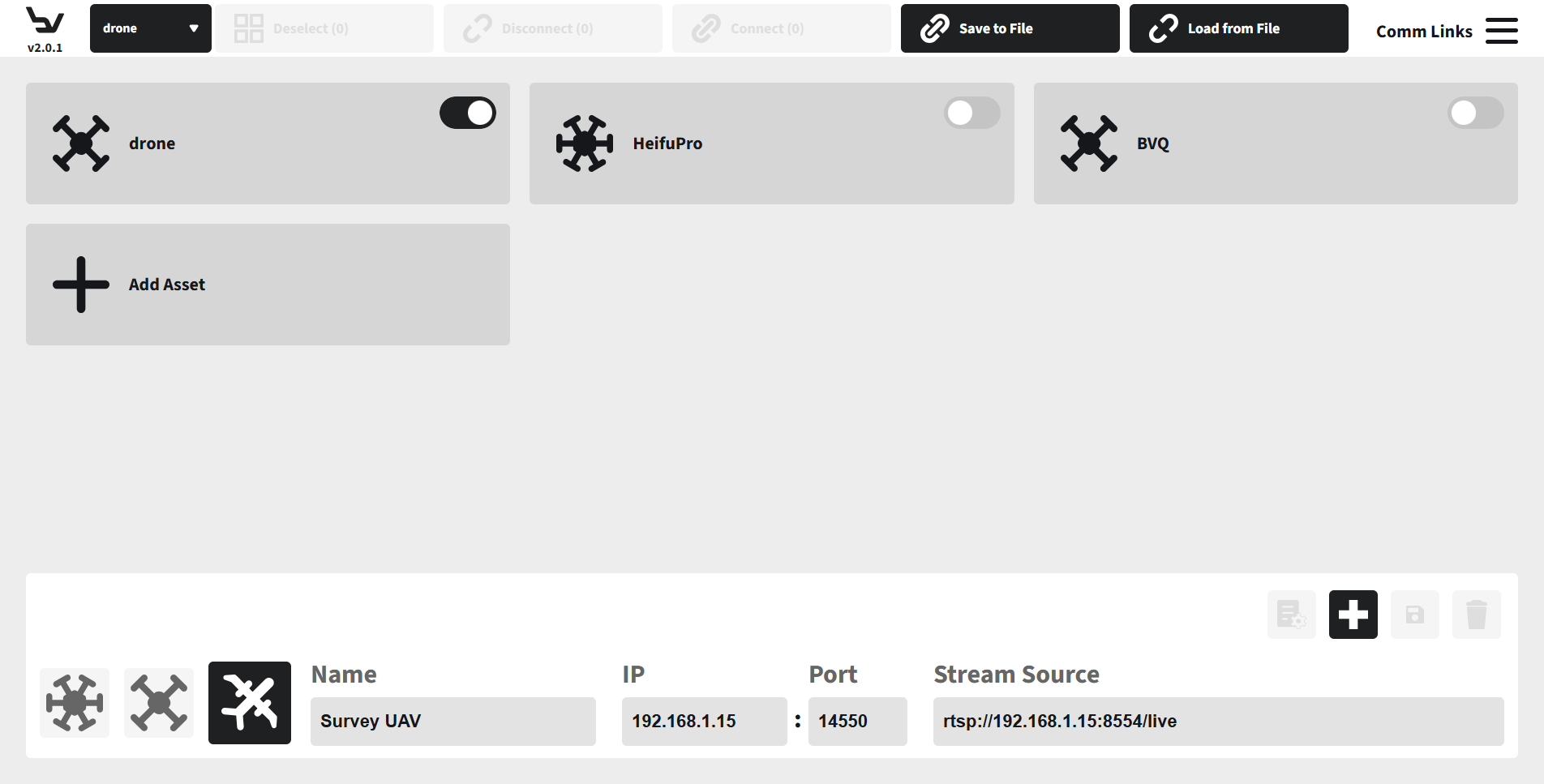
Fig. 95 Step 4: Open the Add Asset workflow
Choose the icon and enter the new asset’s Name, IP, Port, and Stream Source values.

Fig. 96 Step 5: Fill the new asset fields
Use the add/save action in the editor header to store the entry. Use the trash action only for saved entries you intentionally want to remove.

Fig. 97 Step 6: Editor action buttons
Use Save to File and Load from File to export or restore the comm-link list.

Fig. 98 Step 7: File actions in Comm Links
Expected Result
The correct asset entry is available in the comm-link list, the connection toggle reflects its current state, and saved values remain ready for future sessions.
Troubleshooting
If an entry will not connect, confirm the IP and Port values match the remote system.
If stream video is missing later in Monitor, review Stream Source in this page first.
If a new entry cannot be saved, check for duplicate names or invalid port values.