Optional Modules
Use the Modules workspace to enable deployment-specific features and open the optional module tabs that your environment supports.
Navigation: Menu > Modules
Before You Start
Module availability depends on your deployment.
Only enable integrations your team actively uses.
Some module pages remain useful while disconnected, but live control windows often depend on an active asset.
Steps
Open Overview to review and toggle the modules available across the application.
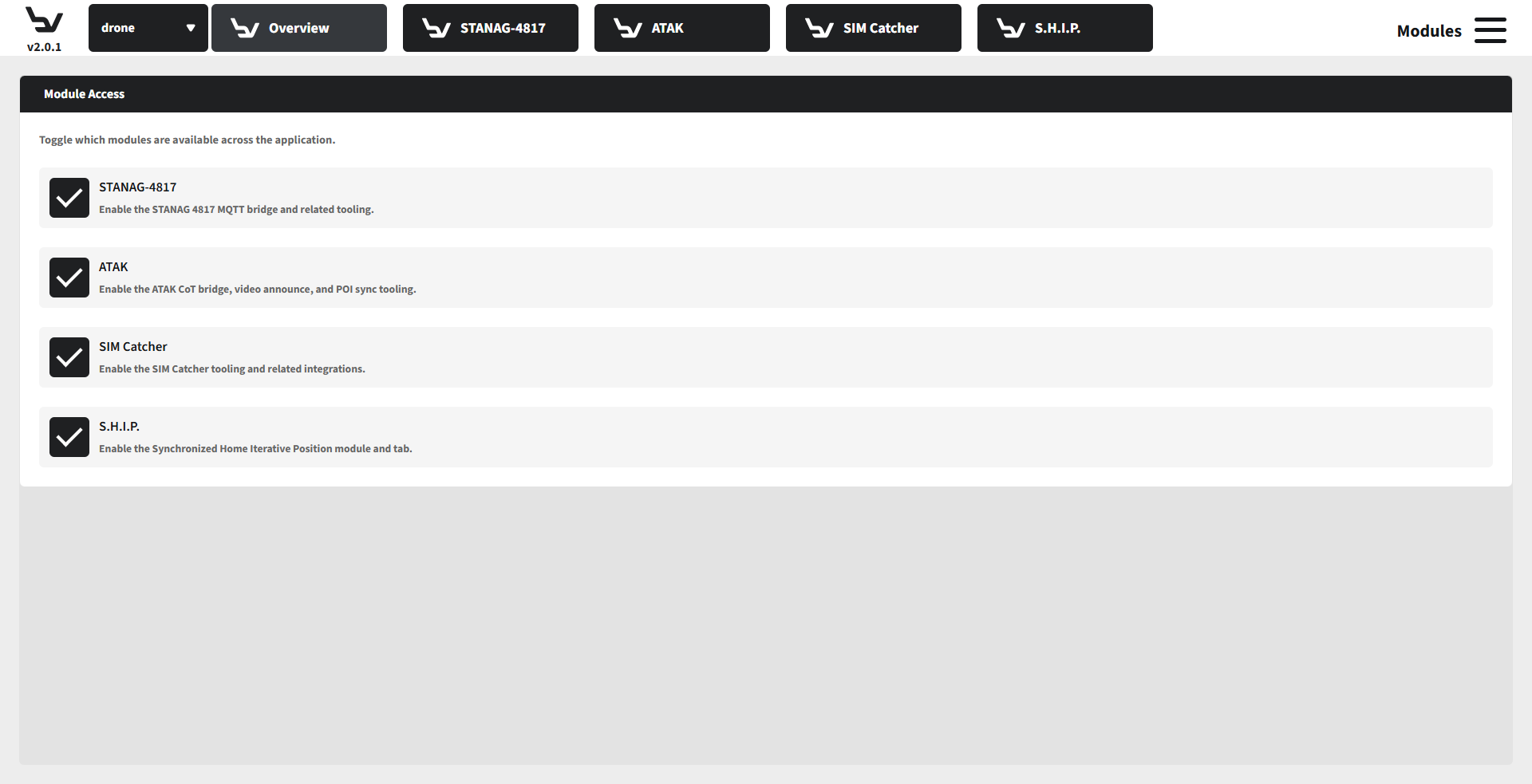
Fig. 121 Step 1: Module overview
Open STANAG-4817 to manage the MQTT connection, certificate settings, and the dedicated STANAG control window.
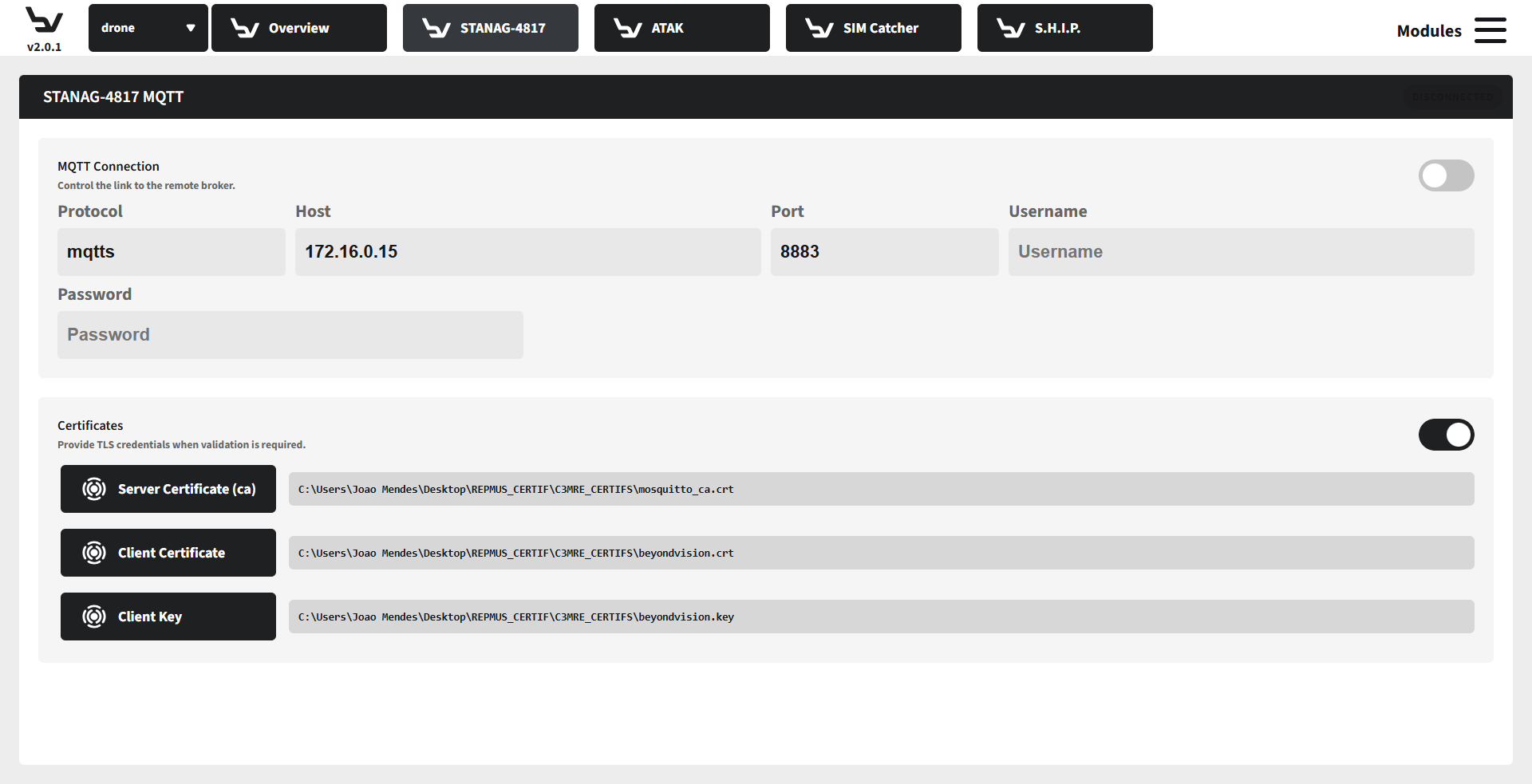
Fig. 122 Step 2: STANAG-4817 module
Open ATAK to manage the ATAK connection, certificates, broadcast behavior, and ATAK control window access.
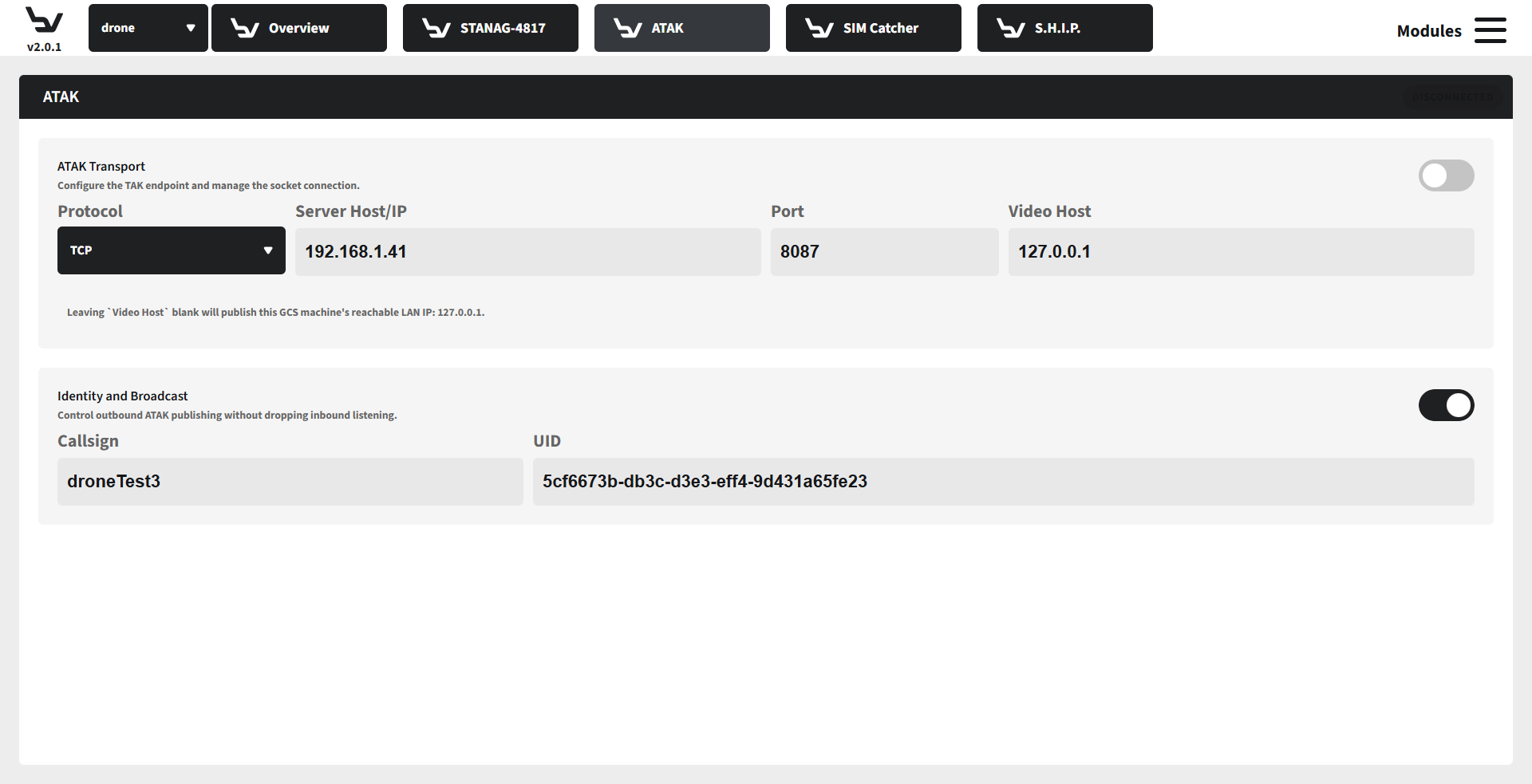
Fig. 123 Step 3: ATAK module
Open SIM Catcher to choose the vendor integration and connect the active SIM Catcher source.
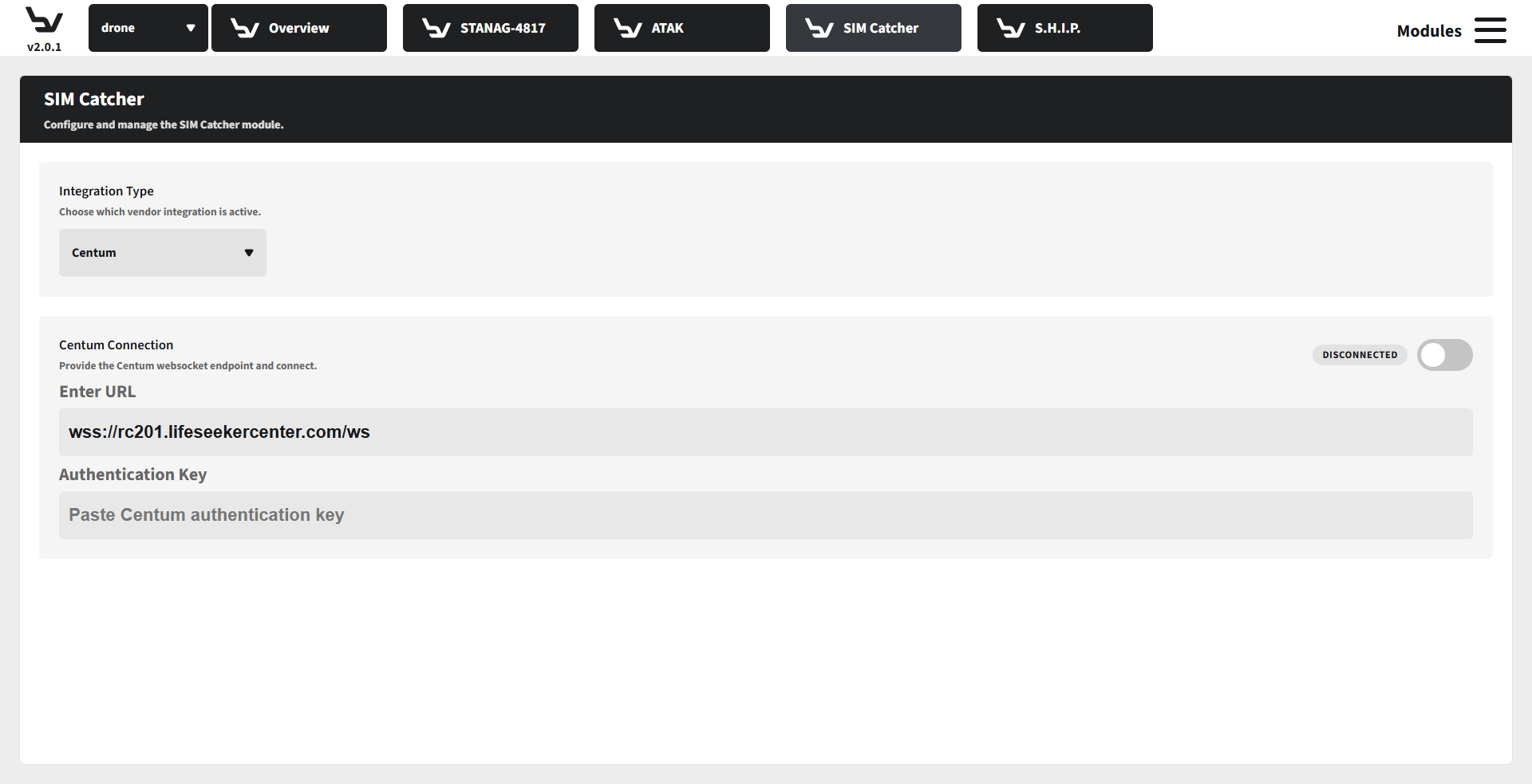
Fig. 124 Step 4: SIM Catcher module
Open S.H.I.P. when it is enabled to manage iterative home updates and GPS source behavior.
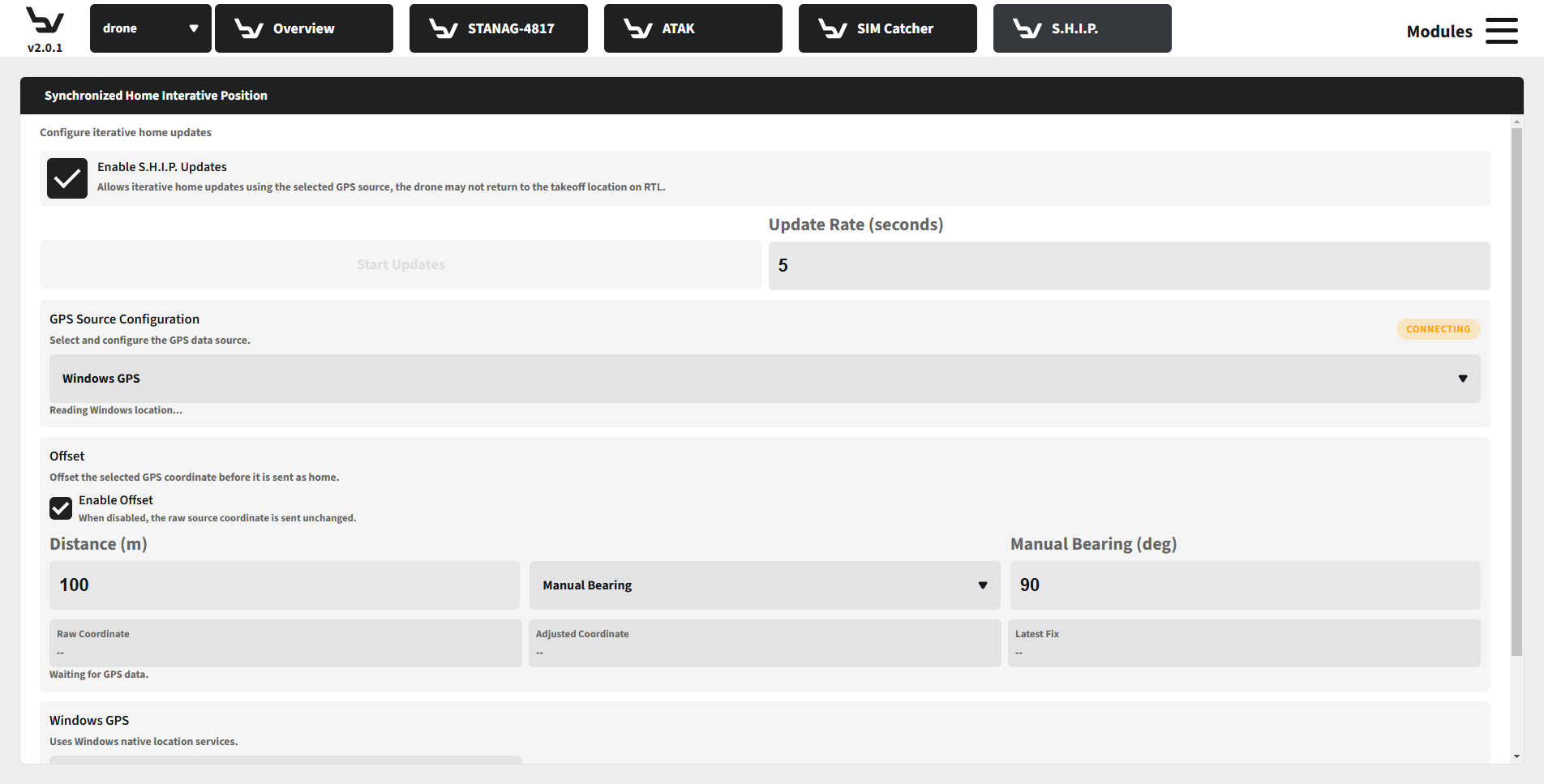
Fig. 125 Step 5: S.H.I.P. module
Expected Result
The optional module tabs that are enabled in Overview become available for use, and each module page exposes its own connection or configuration workflow.
Troubleshooting
If a tab is missing or disabled, return to Overview and confirm the module is enabled.
If a module connects but shows no live context, check whether it requires an active asset or external credentials.
If certificate paths or URLs are missing, gather the deployment-specific values before enabling the module.