Configure GCS Settings
Use GCS Settings to change operator-station behavior, view layout, stream handling, joystick configuration, and map preferences.
Navigation: Menu > GCS Settings
Before You Start
These settings affect the ground station, not the aircraft controller.
Some sections, such as Stream, are more useful when an active asset is connected.
Joystick sections depend on a detected input device.
Steps
Open General to manage measurement units, Mavlink System ID, and monitor view toggles such as Primary Flight Display, Video Stream, and Flight Path.
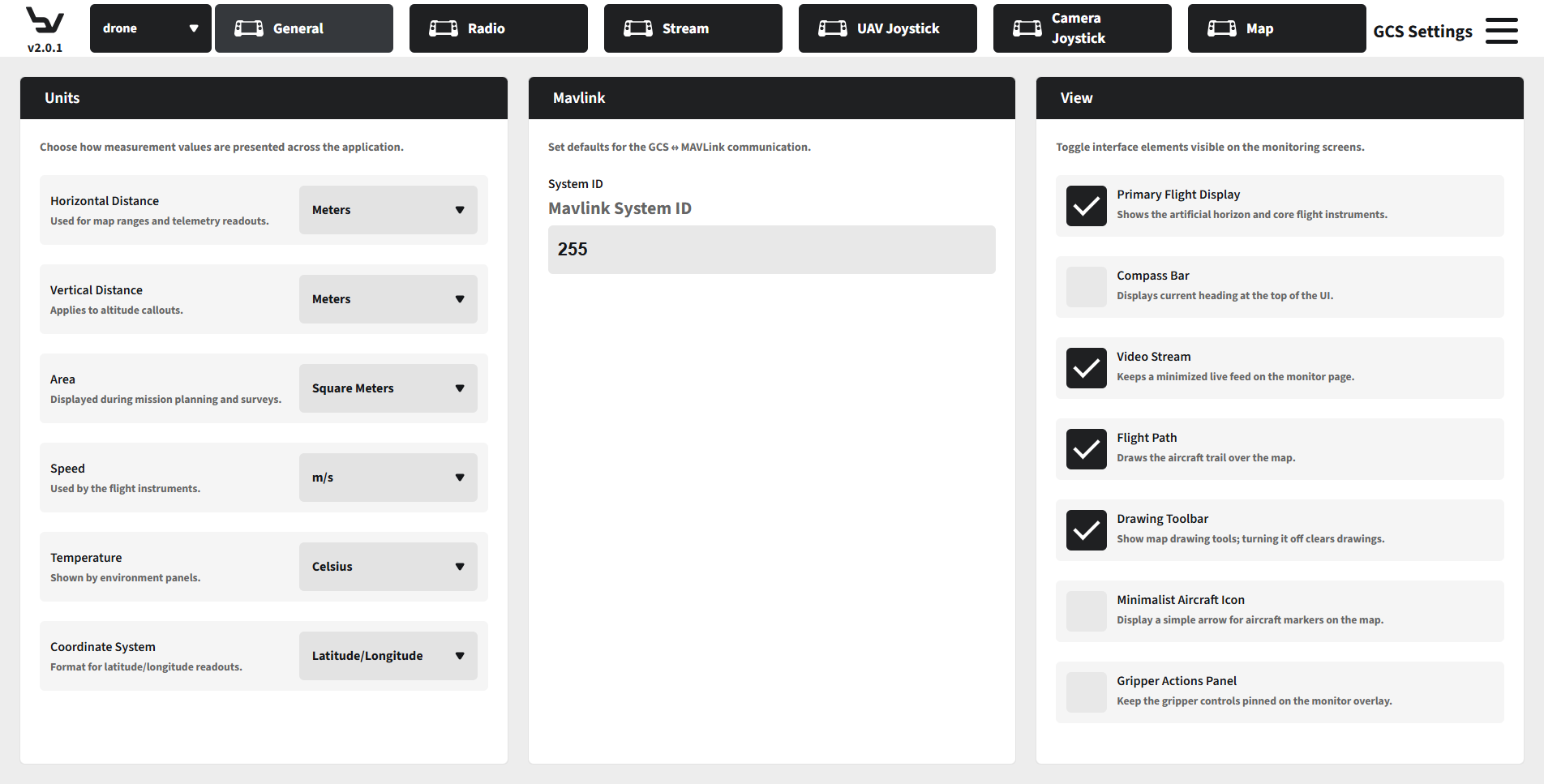
Fig. 109 Step 1: General settings
Open Radio to set Radio IP, Station IP, and the connection toggles for the radio management webview.
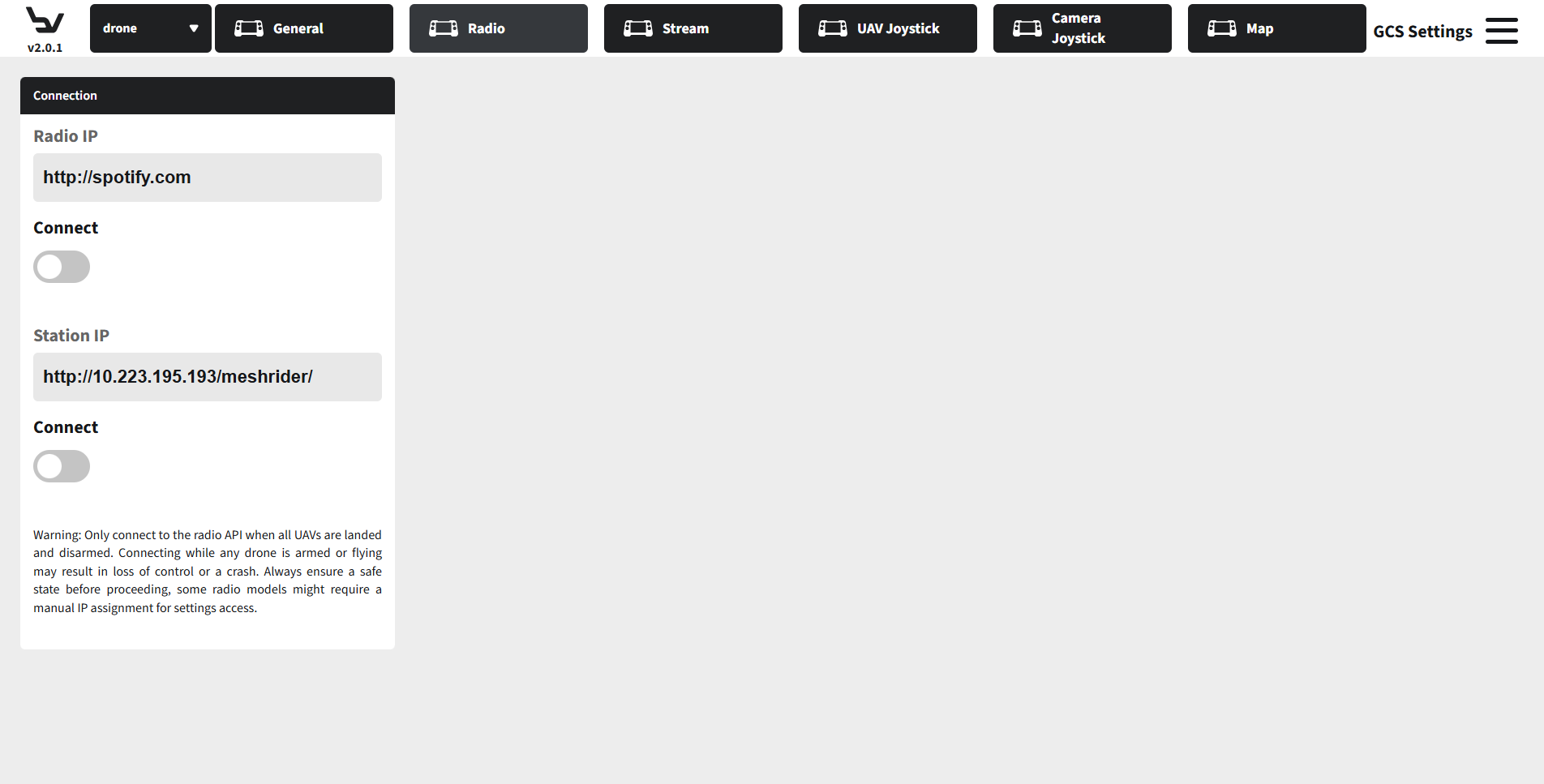
Fig. 110 Step 2: Radio settings
Open Stream to review the active drone stream endpoint, MediaMTX status, codec details, and hardware acceleration controls.
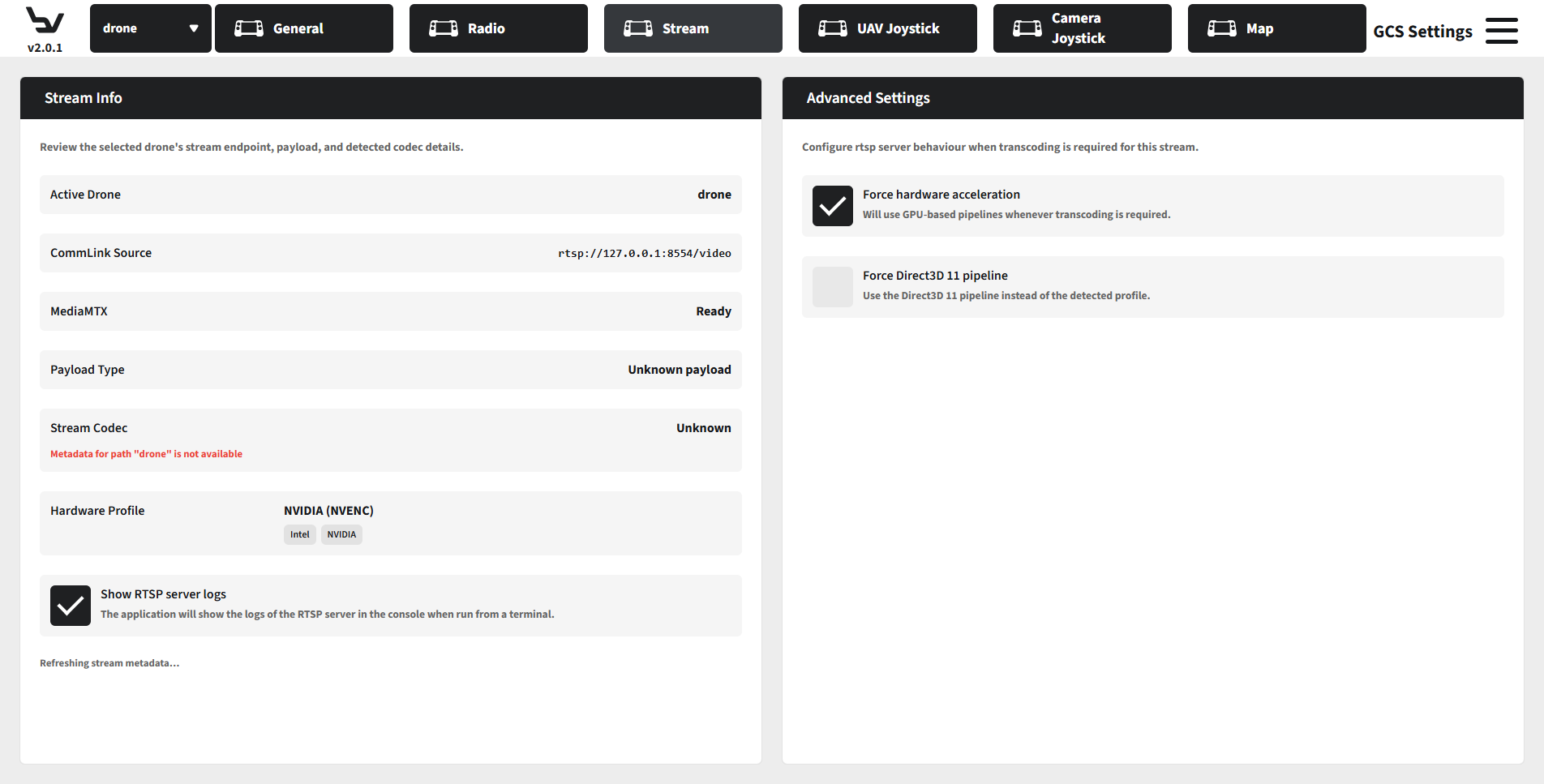
Fig. 111 Step 3: Stream settings
Open UAV Joystick to choose the active joystick, inspect live inputs, manage bindings, and review calibration tools.
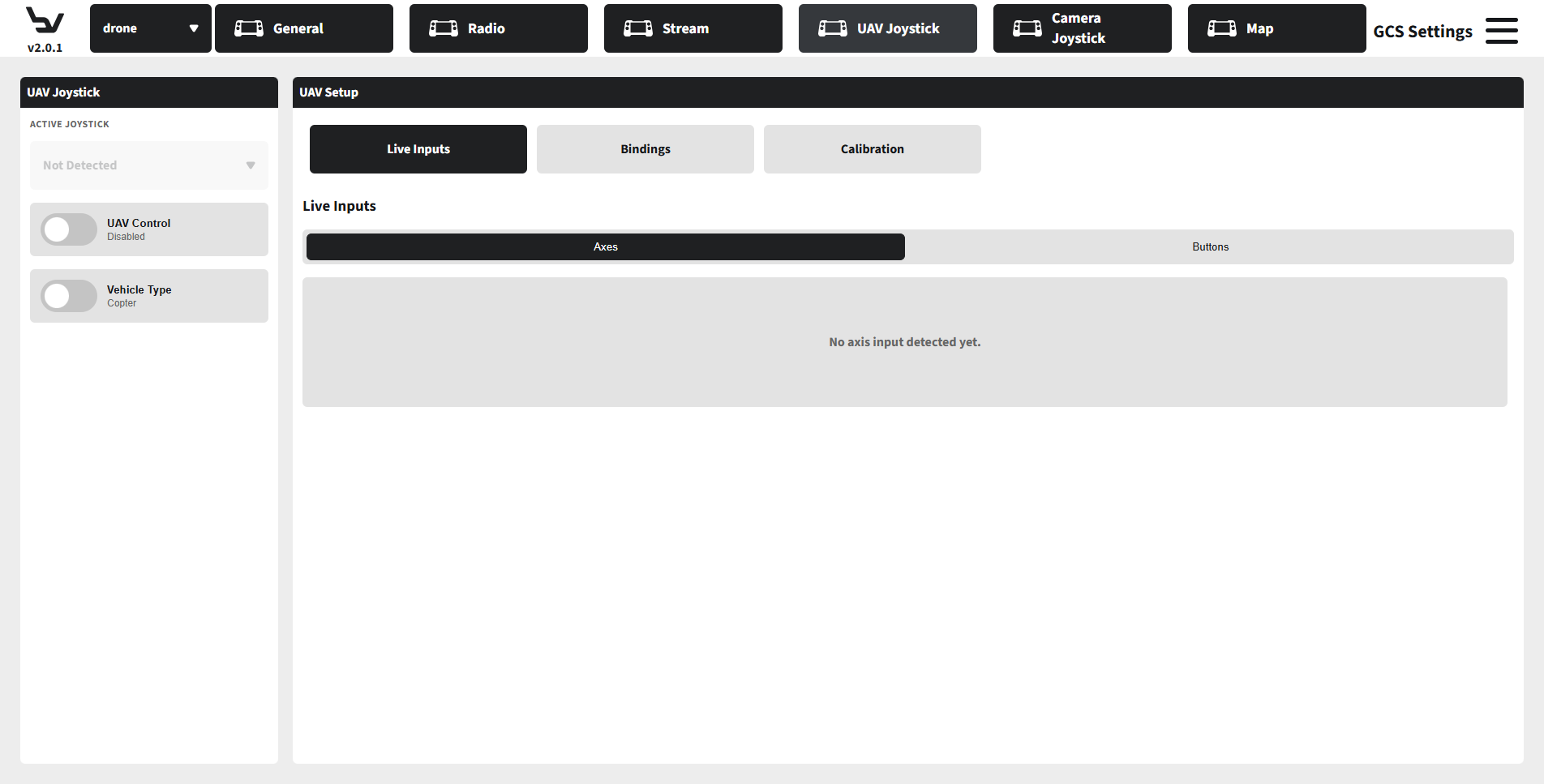
Fig. 112 Step 4: UAV joystick settings
Open Camera Joystick to map camera pan/tilt axes and camera-related button actions.
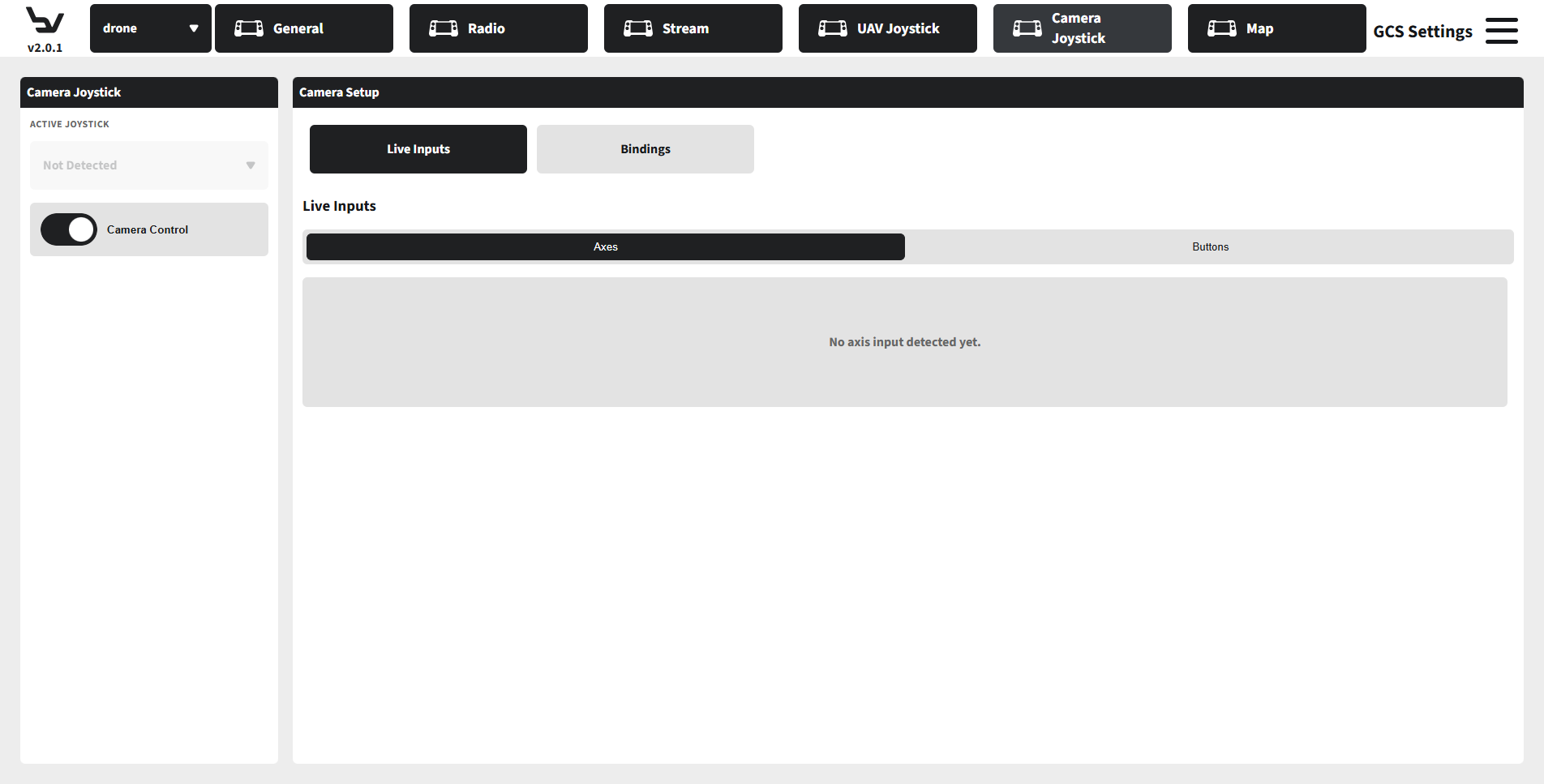
Fig. 113 Step 5: Camera joystick settings
Open Map to switch between Offline Map and Nautical Charts configuration tabs.
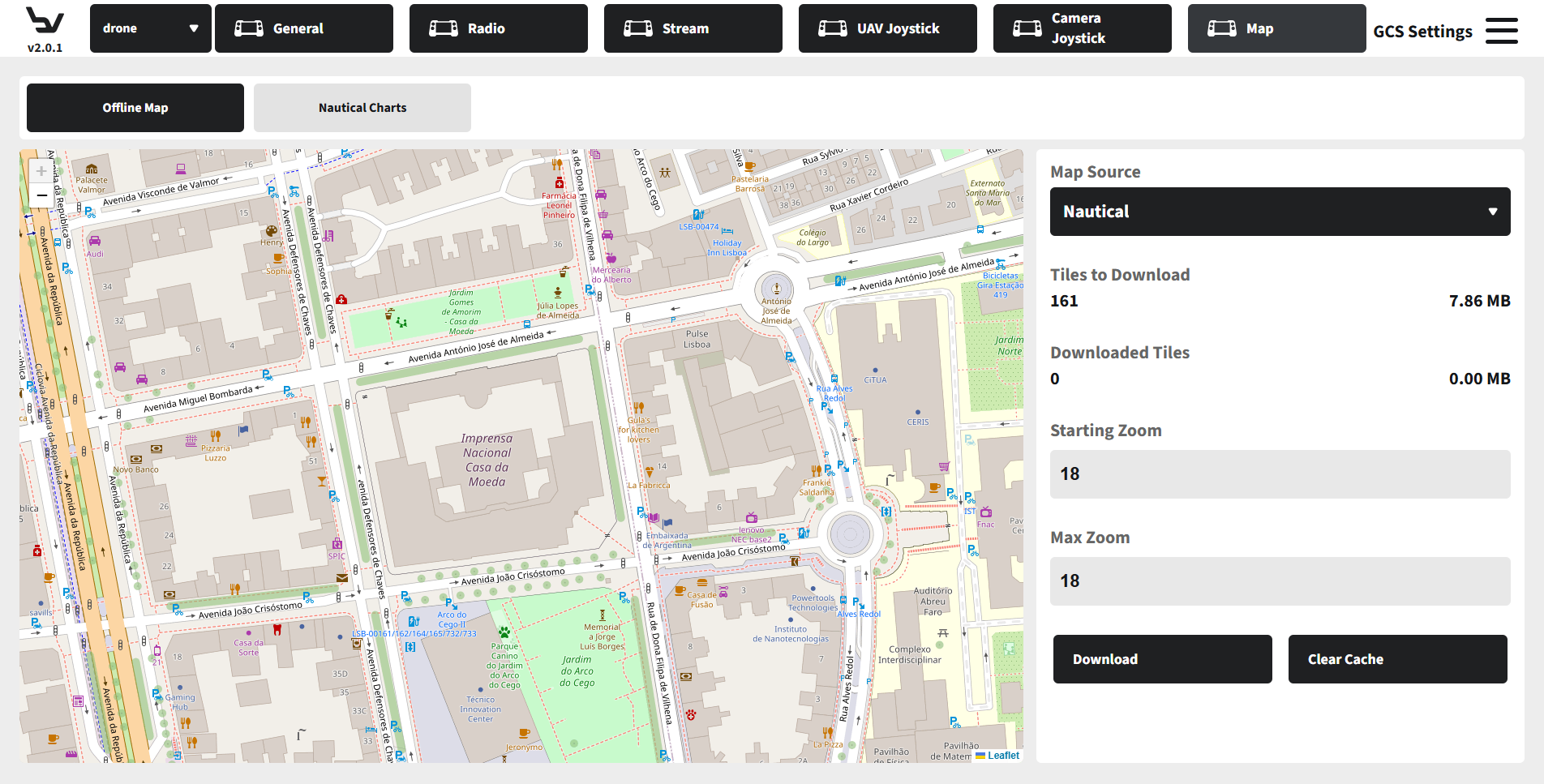
Fig. 114 Step 6: Map settings
Caution
The Radio section warns that radio API access should only be used when all UAVs are landed and disarmed.
Expected Result
The GCS-side configuration pages are available, and each section exposes the controls needed for station-wide preferences and operator workflows.
Troubleshooting
If joystick pages show Not Detected, reconnect the joystick and reopen the section.
If the stream page reports missing source data, review the asset entry in Comm Links and reconnect the asset.
If a view element is missing in Monitor, confirm its toggle is enabled in General.