Get Started
Connect a saved asset, confirm live telemetry, and reach the main operating view in GCS-beXStream.
Navigation: App launch > Comm Links
Before You Start
Make sure the target aircraft or simulator is already reachable through a saved comm-link.
Keep the aircraft in a safe state before connecting.
If more than one comm-link is available, confirm which entry belongs to the asset you want to use.
Steps
Open GCS-beXStream and confirm the app starts on Comm Links.
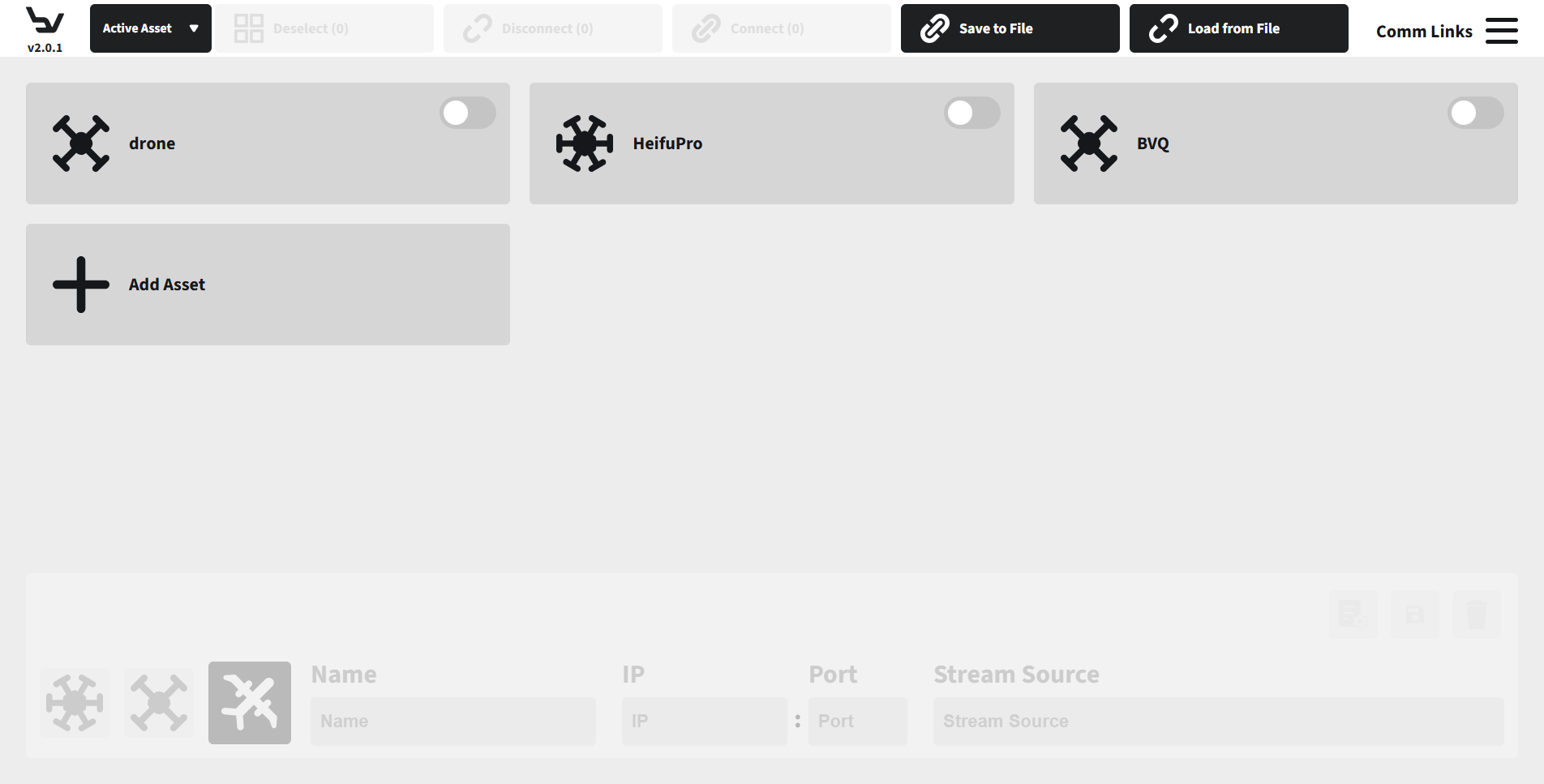
Fig. 87 Step 1: Comm Links entry
Open the main menu with the hamburger button in the top-right corner to review the primary work areas.
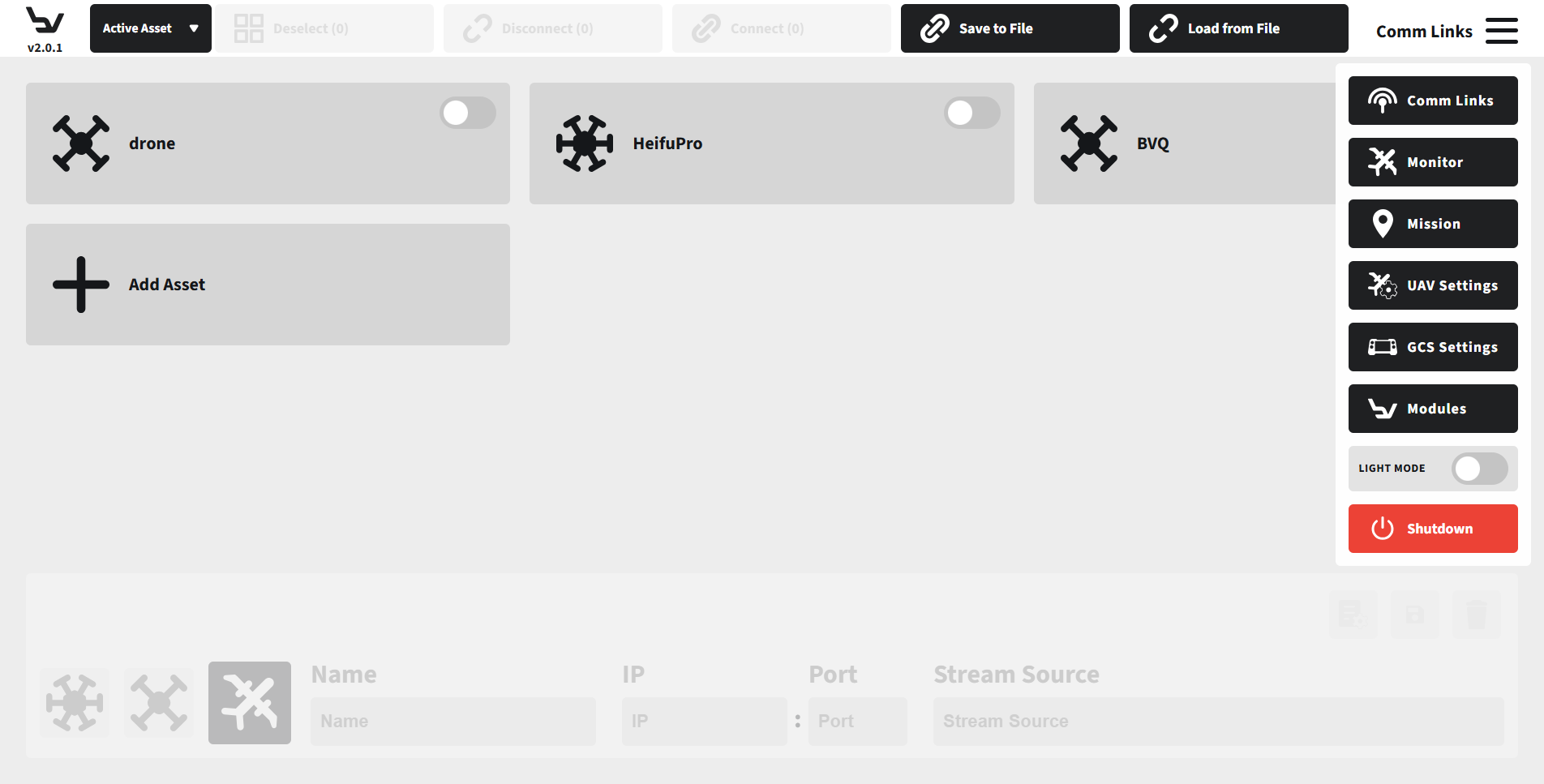
Fig. 88 Step 2: Open the main menu
Click the saved comm-link for the aircraft you want to operate so its details appear in the editor panel.
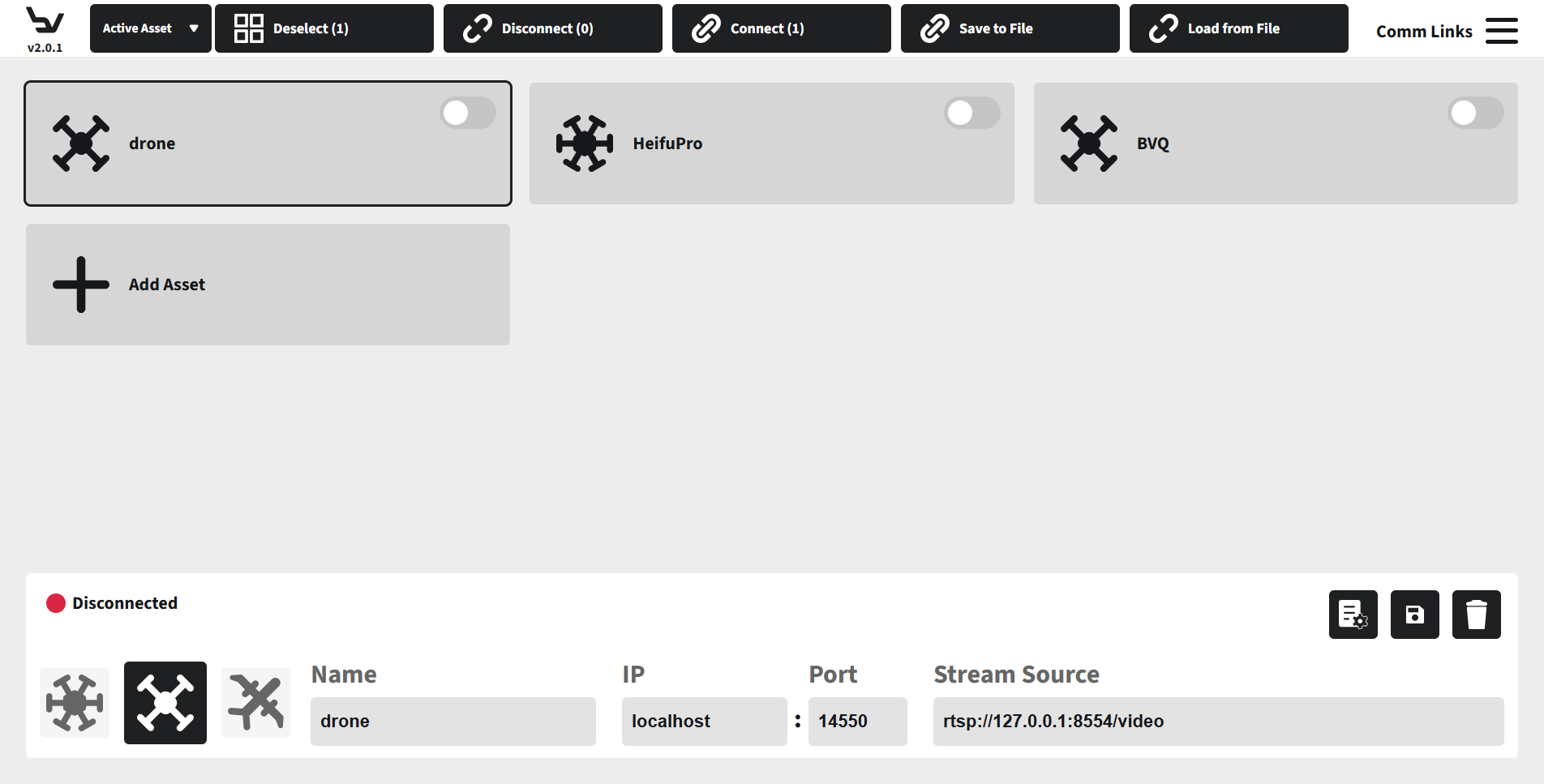
Fig. 89 Step 3: Select the saved comm-link
Turn on the connection toggle for the selected comm-link and wait for Active Asset to show the connected aircraft name.
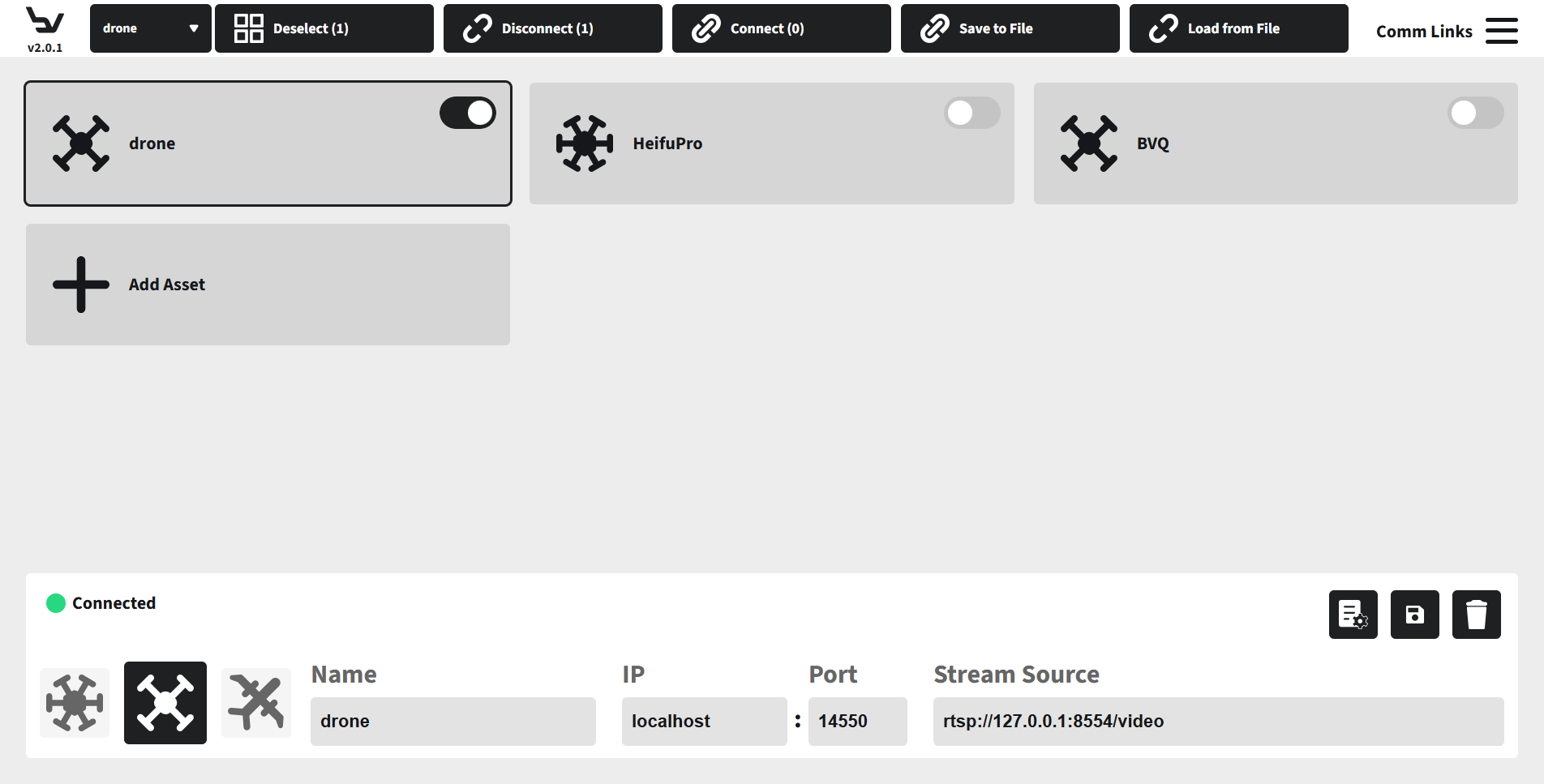
Fig. 90 Step 4: Connect the selected asset
Open Monitor from the main menu and confirm the live monitoring workspace loads for the connected asset.
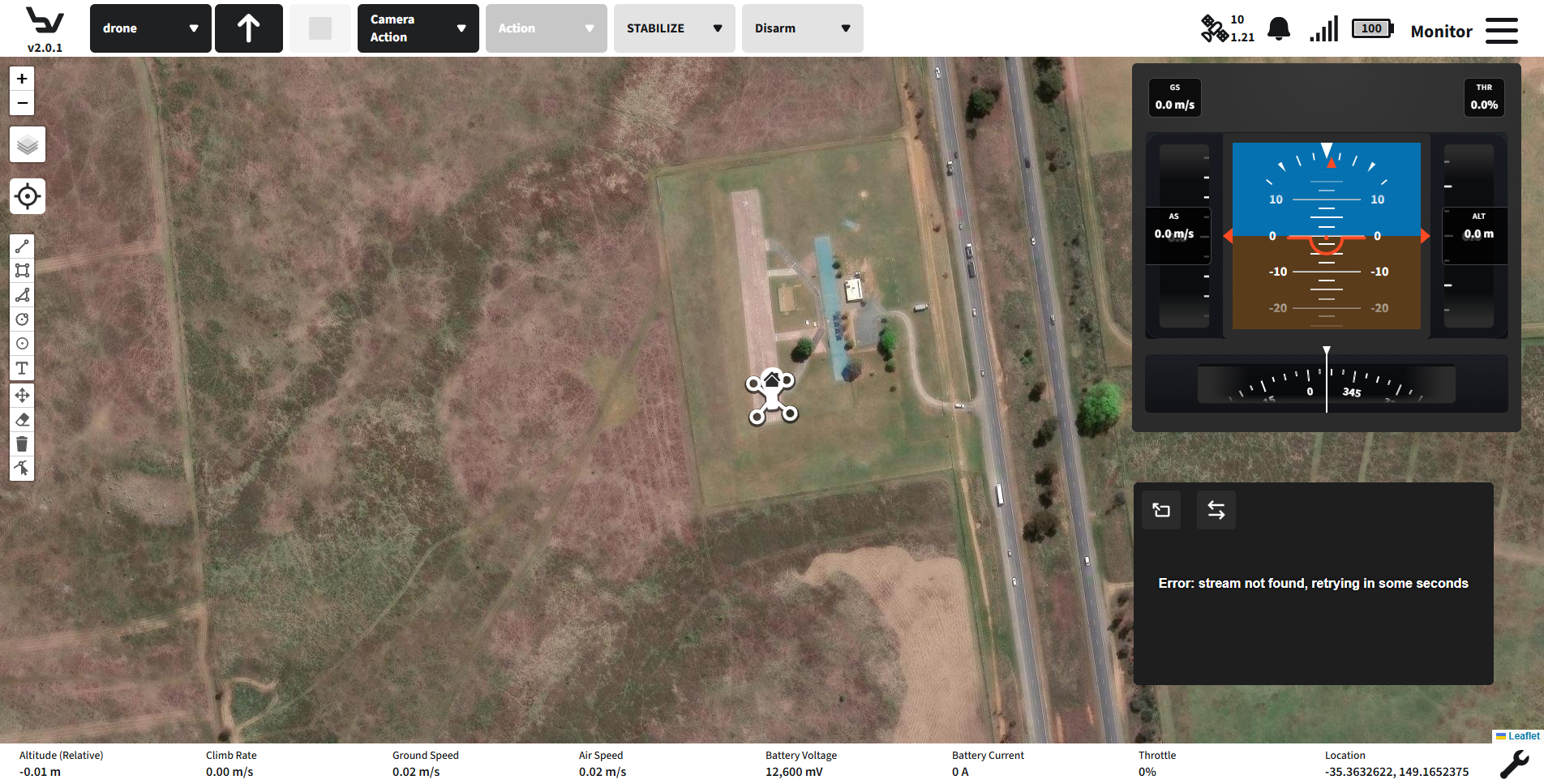
Fig. 91 Step 5: Open the monitor workspace
Expected Result
The selected asset appears in Active Asset, the app opens the monitoring workspace, and live telemetry widgets begin updating.
Troubleshooting
If Active Asset stays empty after connecting, return to Comm Links and verify the saved IP and port.
If the connection drops within a few seconds, confirm the aircraft is sending MAVLink heartbeats and reconnect.
If Monitor opens without live data, wait a few seconds for the link to stabilize before troubleshooting stream or telemetry details.